
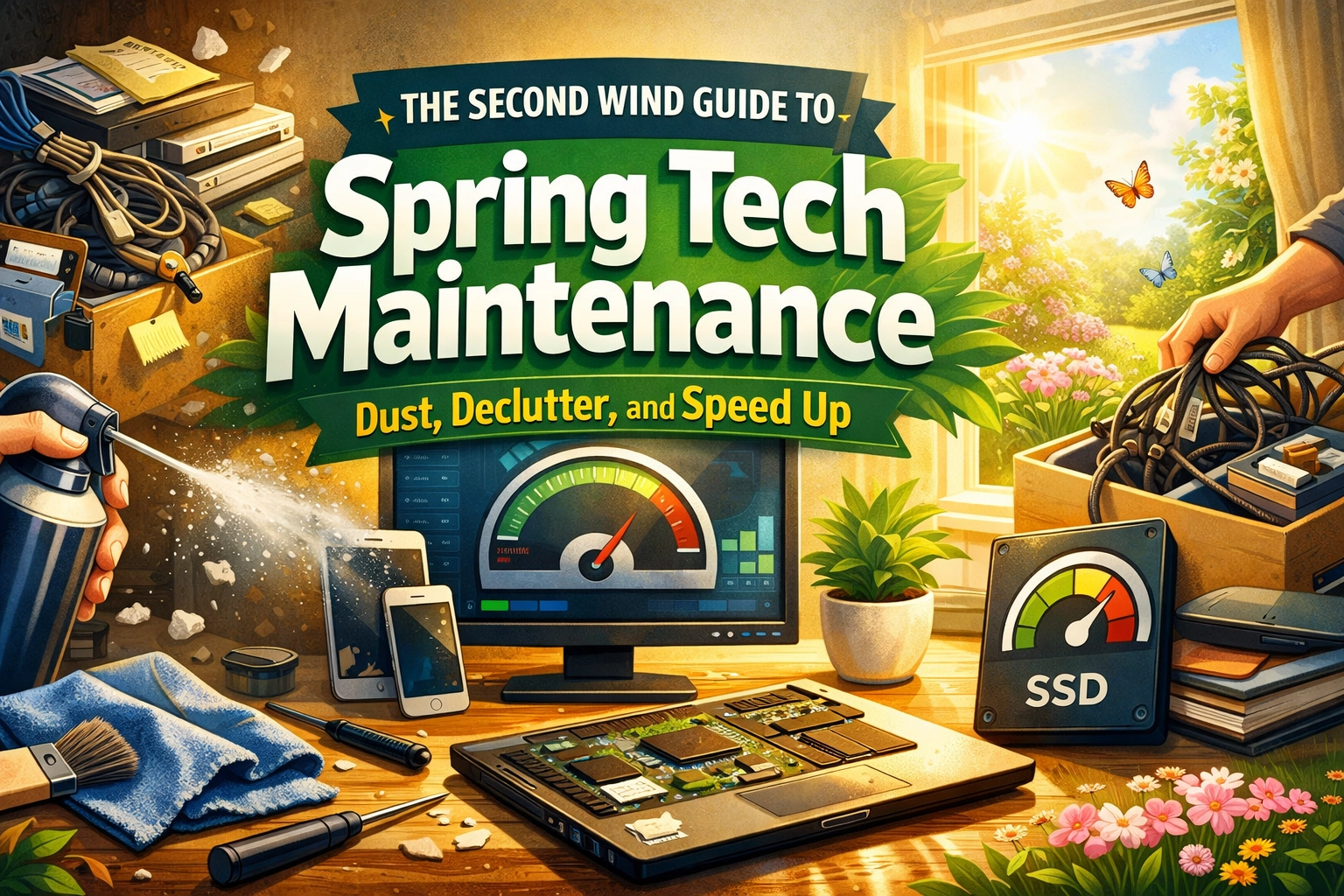
Well, folks, it’s that time of year again. Out here in the Raymond, Magrath, and Stirling area, we know exactly what "spring" means. It means the snow is finally retreating, the wind is kicking up even harder than usual, if you can believe that, and the dust from the fields is starting to find its way into every nook and cranny of our homes.
While you’re probably already thinking about airing out the house or getting the yard ready for planting, there’s one part of your life that usually gets neglected during the big spring clean: your technology.
I’m Cody Woodman, the owner here at Second Wind Sales and Services, and I’ve seen firsthand what happens when a computer goes three years without a good dusting. It isn’t pretty. It’s like trying to run a marathon while breathing through a thick wool blanket. At Second Wind, our whole philosophy is about making things last. We want to give your tech its "second wind" so you can save money, keep electronics out of the landfill, and avoid the headache of a slow machine.
So, grab a coffee (or a tea, I don't judge), and let’s walk through the Second Wind guide to getting your tech back in tip-top shape.
Part 1: The Great Physical Dust-Off
If you live around Stirling or Magrath, you know the dust isn’t just outside. It’s a persistent neighbor. Your computer’s cooling fans act like tiny vacuum cleaners, sucking in all that airborne debris and trapping it against the sensitive components inside.
The "Belly of the Beast" (Internal Cleaning)
Your PC or laptop generates heat. To stay cool, it needs airflow. When dust builds up on the heat sinks and fans, your computer has to work twice as hard to stay cool. This leads to thermal throttling, which is just a fancy way of saying your computer slows itself down so it doesn't melt.
The Easy Way: Buy a can of compressed air. Take your desktop tower or laptop out to the porch (don't do this inside unless you want a face full of dust!), and give the vents a few short, sharp blasts.
The Hard Way: Opening the case yourself. If you’re comfortable doing it, popping the side panel off a desktop lets you really see the "dust bunnies" hiding in the corners.
Pro-Tip: Never use a standard household vacuum inside your computer. The static electricity generated by a vacuum nozzle can fry a motherboard faster than a Southern Alberta lightning storm.

Screens and Keyboards
Stop right there! Before you grab the Windex and a paper towel, let’s talk. Most modern screens have special coatings that can be stripped away by harsh chemicals.
- For Screens: Use a clean microfiber cloth. If there’s a stubborn fingerprint from the kids, a tiny bit of distilled water on the cloth is usually all you need.
- For Keyboards: Turn it upside down and give it a gentle shake. You’d be surprised how many crumbs from last month's snacks fall out. For the sticky stuff, a cotton swab with a little bit of high-percentage isopropyl alcohol works wonders.
Part 2: The Digital Declutter
Once the outside is shiny, it’s time to fix the "clutter" you can’t see. A messy hard drive is like a messy workshop; it takes you ten minutes to find the screwdriver you just had in your hand.
The Desktop "Junk Drawer"
We all do it. We save every file, photo, and "temporary" download right to the desktop. Eventually, you can’t even see your wallpaper anymore.
- Action: Create three folders: "Keep," "Delete," and "To Sort." Move everything into those folders. Your computer actually uses resources to render all those individual icons on your desktop every time you refresh the screen. Clearing them off can actually make your startup feel snappier.
Clearing the Caches
Think of "caches" as the scrap paper your computer uses to jot down notes while it’s working. Eventually, the desk gets covered in scrap paper.
- Go into your web browser settings and "Clear Browsing Data."
- In Windows, use the "Disk Cleanup" tool. It’s a built-in gem that deletes temporary files that are just taking up space.
The Software Audit
If you haven't used that "Coupon Printer 2021" software in three years, it’s time to let it go. Go to your "Add or Remove Programs" list and be ruthless. Many of these old programs run small processes in the background, eating up your RAM like a hungry teenager at a Sunday dinner.

Even when things look clean to the naked eye, we use our electronics microscope at Second Wind to find hidden corrosion or residue that might be slowing down your board's performance.
Part 3: The "Second Wind" Philosophy – Why Maintenance Matters
You might be wondering, "Cody, why do you care if my laptop is a little dusty?"
It’s simple. At Second Wind, we believe that the most sustainable device is the one you already own. We live in a "throw-away" culture where the big companies want you to buy a new $1,200 laptop every two years. But a lot of the time, that "slow" computer just needs a little TLC.
When you maintain your tech, you are:
- Saving Money: A $50 maintenance check or a $100 SSD upgrade is a whole lot cheaper than a new machine.
- Saving the Planet: E-waste is a massive problem. By extending the life of your computer by another 3-4 years, you’re keeping heavy metals and plastics out of the ground.
- Reducing Frustration: Life is too short to wait five minutes for Word to open.
Part 4: The Performance Secret Sauce (The SSD Upgrade)
If you’ve cleaned the dust out and deleted the old files but your computer still feels like it’s stuck in the mud, there is one "magic wand" we use here at the shop.
Most older computers use a traditional Hard Disk Drive (HDD). These have spinning platters, think of them like a record player. They are slow and they eventually wear out. We love replacing these with Solid State Drives (SSDs).
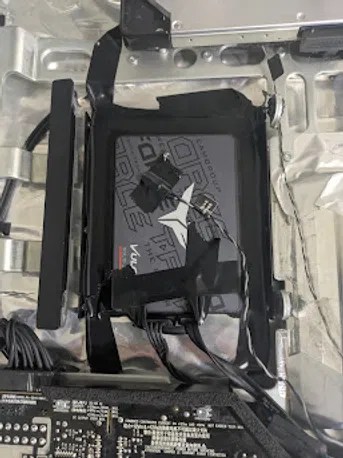
An SSD has no moving parts. It’s purely electronic. Swapping an old HDD for a new SSD is the single best way to give a computer a "second wind." It’s like taking a tractor and putting a turbocharger on it. Suddenly, your computer turns on in 15 seconds instead of 3 minutes.
Part 5: When to Call the Pros
I’m all for DIY. I love it when folks take an interest in how their gear works. But I also know that sometimes, things get complicated.
Maybe you started dusting and realized a fan isn't spinning. Maybe your laptop is making a grinding noise like a gravel crusher. Or maybe you just don't have the time to sit through four hours of software updates and file sorting.
That’s where we come in. We’re your neighbors. We aren't a big-box store in the city where you’re just a ticket number. We’re right here in the Raymond area, ready to help.
The Second Wind Spring Checklist
To wrap things up, here is a quick checklist you can use this weekend:
- [ ] Blow out the dust: Hit those vents with compressed air.
- [ ] Wipe the screen: Microfiber only, please!
- [ ] Check for updates: Run Windows Update or macOS Software Update. Security is part of maintenance!
- [ ] Empty the Trash/Recycle Bin: You’d be surprised how many people forget this.
- [ ] Back it up: Spring is a great time to make sure your photos and documents are backed up to the cloud or an external drive.
If you run into trouble, or if you just want us to handle the "nitty-gritty" details for you, give us a shout. We handle everything from screen repairs to custom builds and deep-system optimizations.
You can check out our full range of services on our website or take a look at our product categories to see what we have in stock.
Let's make sure your tech is ready to handle another year of Southern Alberta life. Your computer helps you work, stay in touch with family, and maybe unwind with a game or two. Treat it well, and it’ll return the favor.
Happy cleaning, neighbors!
By: Cody Woodman
Owner, Second Wind Sales and Services
Leave a Reply