
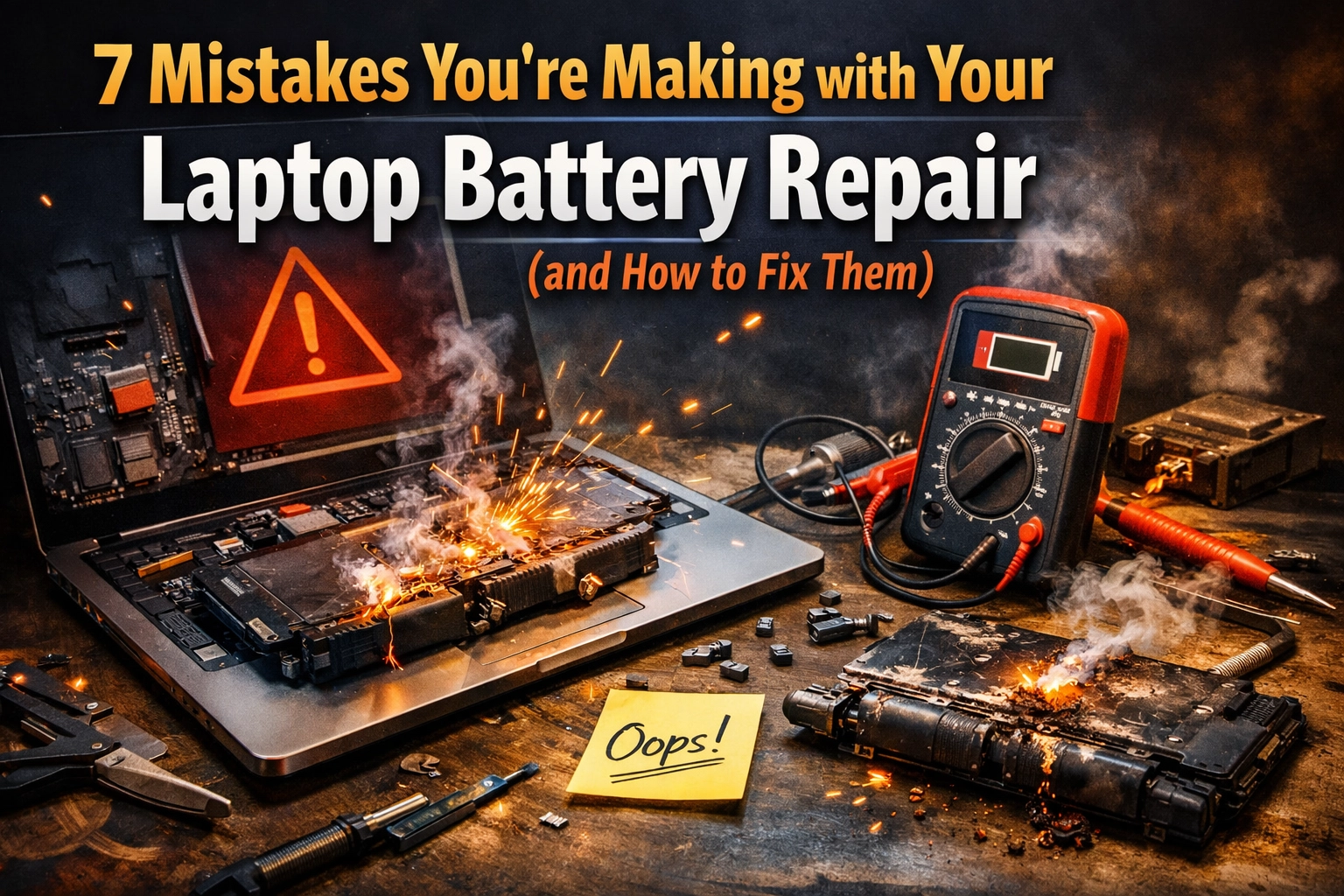
We’ve all been there. You’re sitting at your desk, maybe at a coffee shop, or just lounging on the couch, and your laptop, the device that holds your entire digital life, starts acting like a grumpy toddler. It won’t stay awake for more than ten minutes without being plugged into the wall. It’s frustrating, right? A laptop that isn’t portable is basically just a very thin, very expensive desktop.
When your battery starts to go, the first instinct is to fix it yourself. And honestly, we love that! At Second Wind Sales and Services, we’re all about giving tech a second chance. But here’s the thing: laptop battery repair isn’t quite as simple as swapping the AA batteries in your TV remote. Over the years, I’ve seen some “DIY disasters” that would make a circuit board cry.
If you’re looking for a slow computer fix or just trying to get your MacBook or PC back to its former glory, avoiding these seven common mistakes will save you a massive headache, and possibly a house fire.
1. Buying the “Gas Station Sushi” of Batteries
The biggest mistake people make happens before they even open the laptop case. It’s the lure of the “Bargain Battery.” You see an OEM battery for $90, then you see a generic version on a massive online marketplace for $19.99. It’s tempting, I get it.
But using cheap, unbranded batteries is like putting low-grade fuel in a high-performance engine. These “knock-offs” often have unstable voltage and fake capacity claims. You think you’re getting a 50Wh battery, but it’s actually a 30Wh unit in a fancy plastic shell. Worse yet, they often lack the protection circuits that prevent the battery from overheating.
The Fix: Always go for original parts or high-quality, verified third-party brands that offer a real warranty. If the price seems too good to be true, it probably is. At Second Wind, we source parts that won’t turn your laptop into a spicy pillow.
2. Ignoring the “Alphabet Soup” of Model Numbers
I’ve had folks come into the shop with a battery they bought online, frustrated that it doesn’t fit. “But it’s for a Dell Latitude!” they say. Well, Dell has made about a thousand different Latitudes over the last twenty years.
Laptop batteries are like keys; just because they look similar doesn’t mean they’ll turn the lock. Variations in voltage, the physical connector interface, and cell configuration are huge. If you force a battery with the wrong voltage into your motherboard, you aren’t just doing a repair; you’re performing an accidental lobotomy on your computer’s power chip.
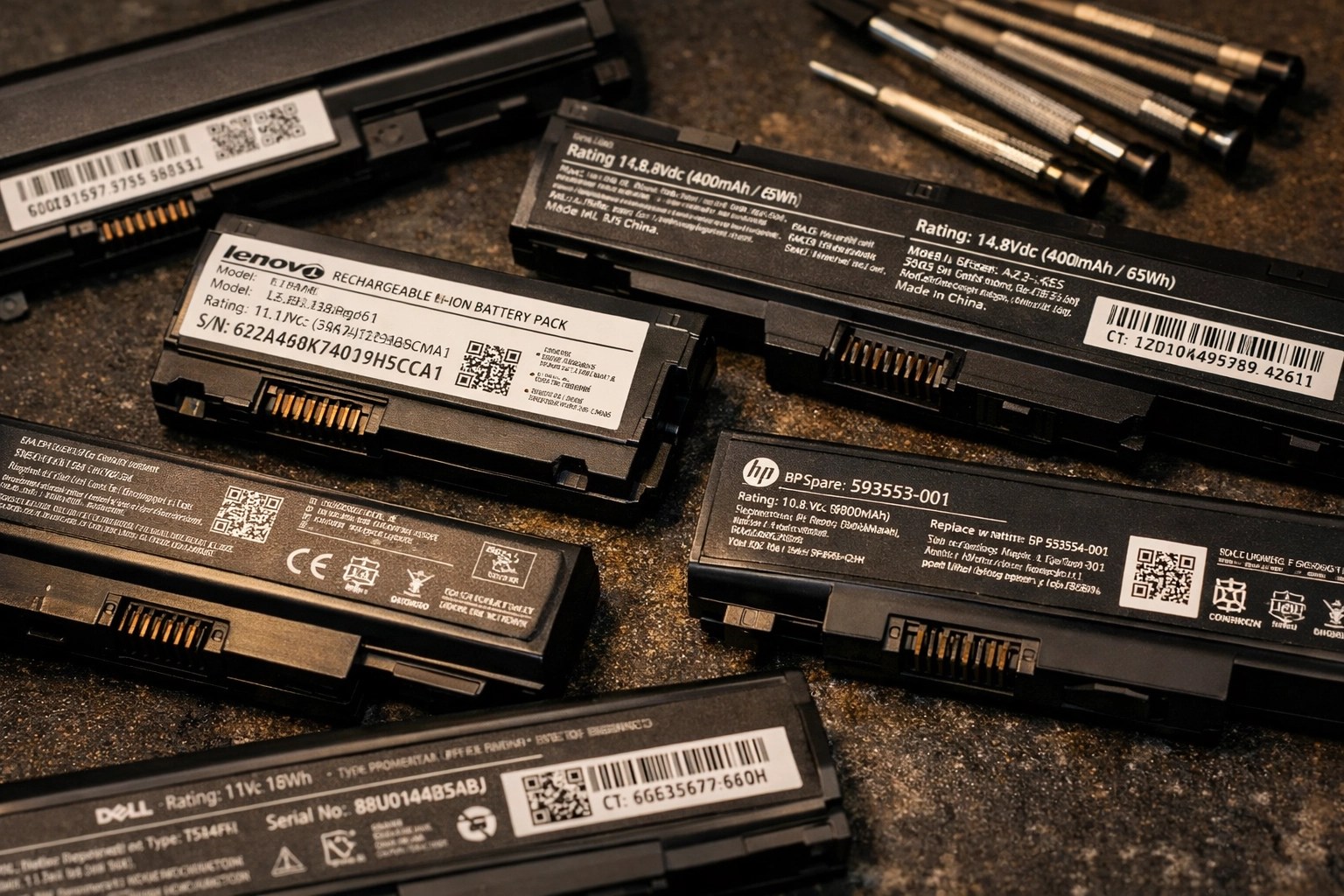
The Fix: Don’t just search by your laptop model. Look at the battery itself. There is almost always a specific part number (like “L14L3P21” or “A1406”). Check that number, double-check the voltage (V) and the Watt-hours (Wh), and then check them one more time for good measure.
3. “Hot-Swapping” While the System is Live
This is a classic “Oops” moment. You’re in the middle of a repair, you’re excited, and you forget to fully power down. Or worse, you leave the AC adapter plugged in while you’re poking around inside.
Laptops are packed with tiny capacitors that hold onto electricity like a squirrel holds onto a nut in November. If you pull or insert a battery while there’s still “juice” in the system, you risk a short circuit or a voltage spike. I’ve seen microscopic sparks jump and fry a perfectly good motherboard in less than a second.
The Fix: Shut it down. Unplug the charger. Once it’s off, press and hold the power button for about 5 to 10 seconds. This “drains the static” and ensures the motherboard is truly dormant before you touch those battery connectors.
4. The “100% to 0%” Mystery: Skipping Calibration
Have you ever replaced a battery, charged it to 100%, and then watched it drop to 5% in twenty minutes? Before you throw the new battery out the window, realize that your laptop’s brain (the BIOS) and the battery aren’t speaking the same language yet. They need an introduction.
Skipping battery calibration is a major reason people think their laptop battery repair failed. The Windows or macOS power management system needs to learn the “highs and lows” of the new cells to give you an accurate reading.
The Fix: After you install a new battery, do a full cycle. Charge it to 100% and leave it on the charger for a couple of extra hours. Then, unplug it and use it until the laptop dies completely. Charge it back up to 100% without interruption. This “handshake” tells the computer exactly how much energy it has to work with.

Even tiny amounts of residue or corrosion around battery terminals can cause communication issues between the battery and the motherboard.
5. Forgetting the “Software Handshake”
We live in the age of “smart” everything. Modern laptops, especially business-class machines like ThinkPads or HP EliteBooks, have built-in verification systems. Sometimes, even if you put in a perfect, genuine battery, the laptop will refuse to charge it because the BIOS or the power management drivers are out of date.
It’s like trying to get into a club with an old ID; the bouncer (the BIOS) doesn’t recognize the new format and keeps you outside in the cold.
The Fix: Before you give up, head over to the manufacturer’s website and check for BIOS or firmware updates. Often, a quick software patch is the “miracle cure” for a battery that says “Plugged in, not charging.”
6. Blaming the Battery for a Port’s Sins
Sometimes, the battery isn’t the villain of the story. If your laptop is charging slowly or not at all, it might actually be a slow computer fix related to the power adapter or the charging port itself.
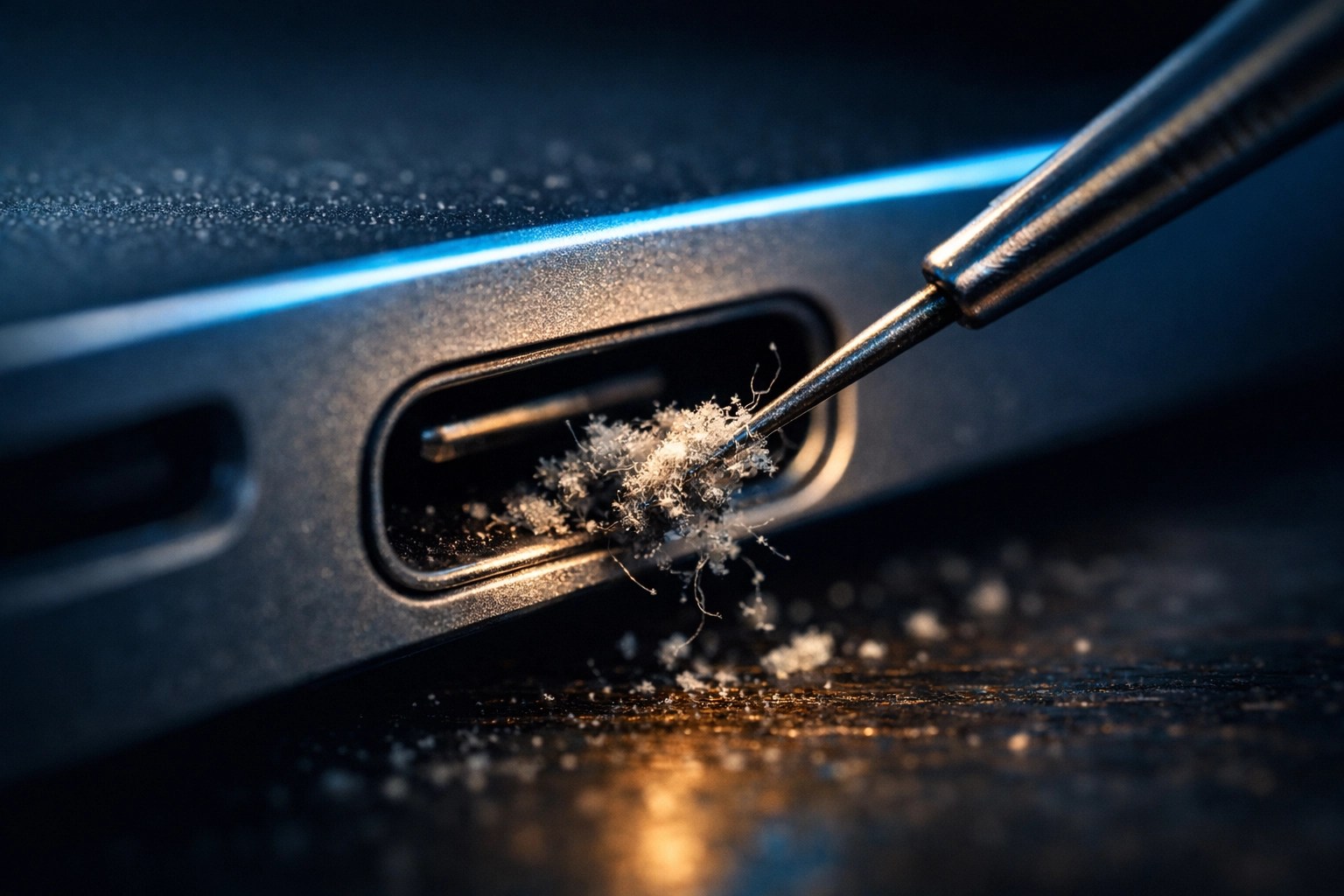
I’ve seen people spend $100 on a new battery only to find out their charging cable had a tiny break in the wire, or the USB-C port on the laptop was clogged with three years’ worth of pocket lint.
The Fix: Before you crack open the case, try a different charger if you have one. Take a flashlight and look into the charging port. If it looks like a dusty attic in there, a quick blast of compressed air might be all you need. You can check out some of our repair tutorials for more tips on diagnosing these pesky hardware issues.
7. Being Too “Handsy” with Lithium-Ion Cells
This is the “Tech Wizard” warning. If you’re attempting a DIY repair where you’re actually opening up a battery pack to replace individual cells (which we generally don’t recommend for beginners), you are literally playing with fire.
Lithium-ion batteries are basically energy-dense sandwiches. If you puncture them, drop them, or use a metal tool to pry them out and accidentally pierce the outer skin, they can undergo “thermal runaway.” In plain English: they turn into a blowtorch that you can’t put out with water.
The Fix: Never use sharp metal tools near a battery. Use plastic spudgers. If the battery is glued in (we’re looking at you, Apple), use a little bit of high-concentration isopropyl alcohol to soften the adhesive rather than prying like you’re digging for gold. And if you see a battery that is swollen: looking like a puffed-up bag of chips: stop immediately. That is a safety hazard that needs professional handling and proper electronics recycling.

Precision is key. When dealing with modern electronics, the components are smaller than a grain of rice.
The Easy Way vs. The Hard Way
You always have a choice when it comes to tech repair.
The Hard Way: Spending three hours watching YouTube videos, ordering a part from a questionable website, accidentally stripping a screw, and then realizing you bought the wrong model anyway.
The Easy Way: Bringing it into a shop that treats your gear like their own. At Second Wind Sales and Services, we don’t just swap parts; we look at the whole picture. Whether it’s a laptop battery repair or a deeper system-wide slow computer fix, we make sure your device leaves the shop better than it arrived.
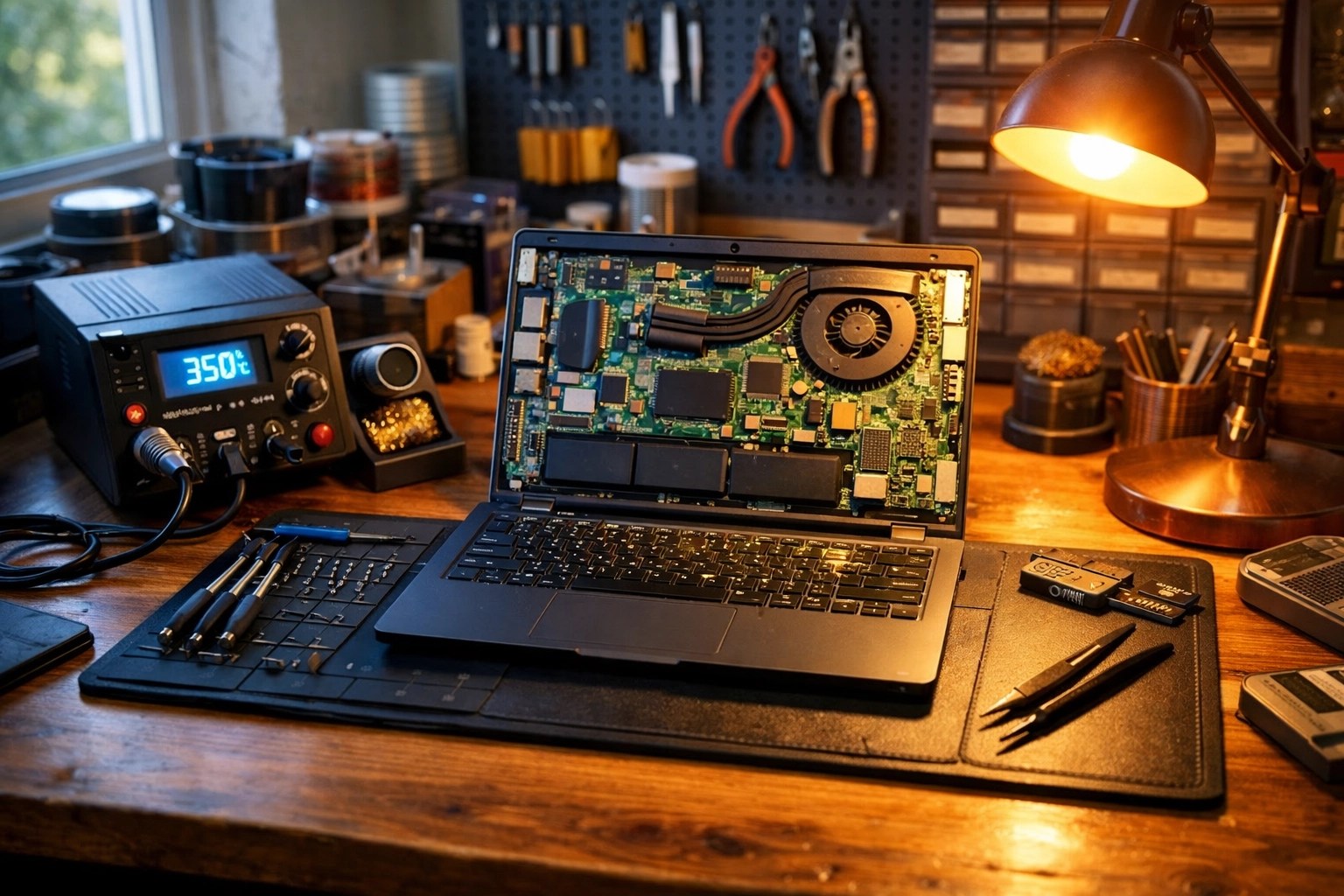
Repairing your own tech is a badge of honor, and we’re here to support that! But remember, a battery is the heart of your laptop’s mobility. Treat it with a little respect, avoid these seven common pitfalls, and you’ll be back to browsing, working, and gaming without being tethered to a wall outlet.
If you’re feeling overwhelmed by all the “alphabet soup” and the risk of “spicy pillows,” don’t sweat it. We’re right here in the neighborhood ready to help. Check out our Online Store to see what we have in stock, or just drop by for a chat. We’ll get your tech catching its “second wind” in no time!
Pro-tip: If you’ve just finished a repair and everything is working great, don’t forget to recycle your old battery properly. Throwing lithium batteries in the trash is a big no-no for the environment: and the garbage truck!
Leave a Reply