
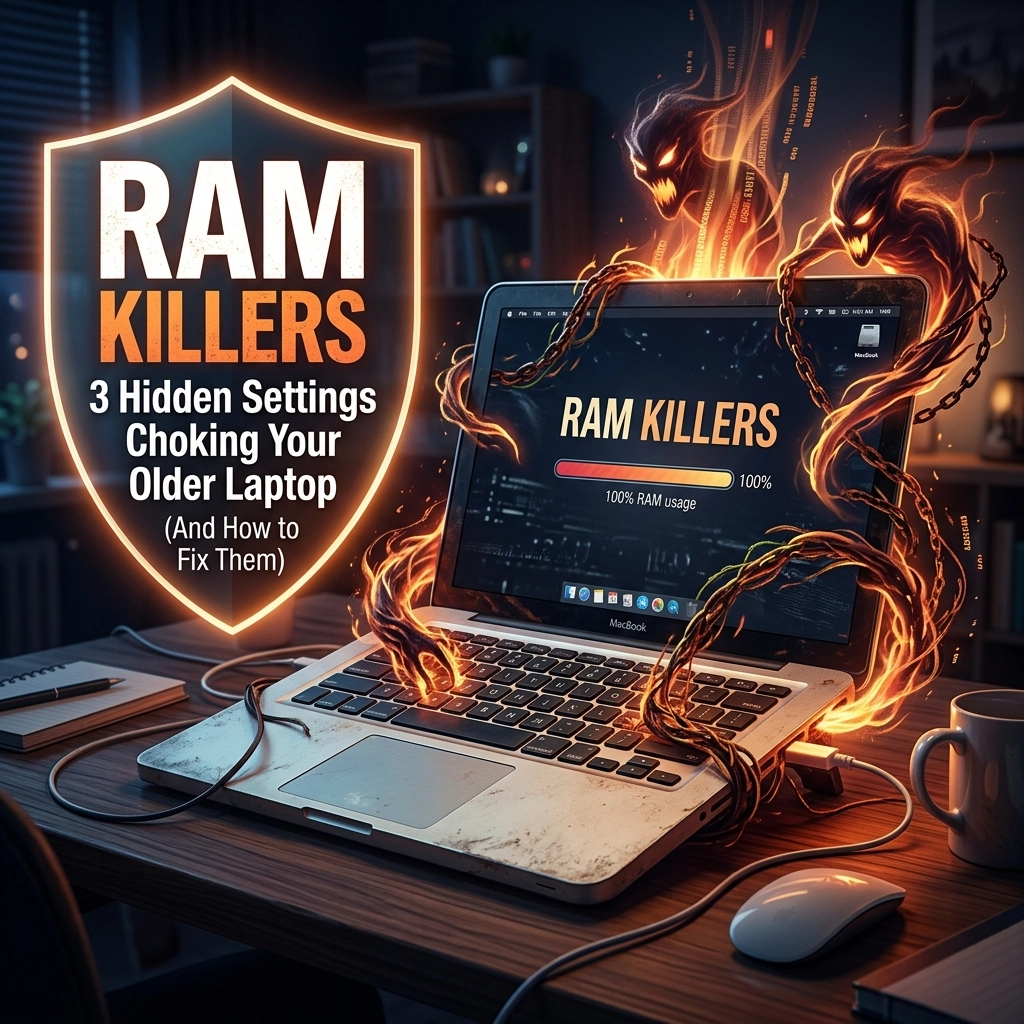
Howdy, folks! Cody here from Second Wind Sales & Services.
Have you ever tried to drive your truck against a 100km/h Lethbridge headwind? You’re flooring it, the engine is screaming, but you’re barely moving faster than a tractor in a hay field. That’s exactly what it feels like to use an older laptop that’s struggling with its Random Access Memory (RAM).
In the tech world, we often hear that “your computer is obsolete” the second a new model hits the shelves. At Second Wind, we think that’s a load of hogwash. Most of the time, your older hardware isn’t actually “slow”: it’s just being choked out by software that thinks it owns the place.
Today, I want to pull back the curtain on three hidden settings that act like invisible anchors on your system. If your laptop feels like it’s wading through molasses, these tweaks might just give it the “second wind” it needs to keep up with the modern world.
The RAM Reality: Why Your Laptop is Gasping for Air
Think of your RAM like a workbench in my shop. Your hard drive is the storage cabinet in the back. To work on a project, I have to take tools out of the cabinet and put them on the workbench. If that workbench is covered in old coffee cups, random screws, and half-eaten sandwiches, I don’t have room to actually work.
Modern Windows and macOS versions are notorious for filling up your “workbench” before you even click a single icon. On a brand-new machine with 32GB of RAM, you don’t notice it. But on a reliable old friend with 4GB or 8GB? It’s a total productivity killer.

1. The “Invisible Passengers”: Startup Programs & Background Apps
The biggest culprit is usually the stuff you didn’t even know was running. Every time you install a piece of software, it tries to pull a “fast one” by setting itself to start the moment you turn on your computer. It’s like trying to pull out of your driveway, but ten neighbors jump in your back seat and demand a ride.
The Easy Way (Task Manager)
If you’re on Windows, right-click your taskbar and hit Task Manager. Click the “Startup” tab. See that list? Most of those don’t need to be there. Spotify? Disable. Microsoft Teams? Disable. That weird printer utility from 2014? Definitely disable.
The “Deep Dive” (Background Apps)
Windows has a hidden habit of keeping “Universal Apps” running in the background so they can send you notifications or update themselves.
- How to fix it: Go to Settings > Privacy > Background Apps. You’ll see a master switch. I usually tell folks to just flip the whole thing to “Off.” Your computer will thank you, and I promise you won’t miss your “Weather” app updating itself every three seconds while you’re trying to check your email.
2. The “Helpful” Saboteur: SysMain (Formerly Superfetch)
This is one of those settings that sounds great on paper but can be a nightmare for older hardware. SysMain (or Superfetch in older versions of Windows) is designed to “predict” which apps you’re going to use and preload them into your RAM.
On a modern PC with a lightning-fast SSD, this is fine. But on an older laptop with a traditional spinning hard drive or limited memory, SysMain can cause your disk usage to spike to 100%, making the whole system freeze up like a pipe in a -30°C Alberta winter.
How to Disable SysMain:
- Click your Windows Search bar and type “Services”.
- Scroll down until you find SysMain.
- Right-click it and select Properties.
- Change the “Startup type” to Disabled and click the Stop button.
- Hit Apply and OK.
Pro-Tip: If you notice your computer takes an extra second to open Chrome after doing this, don’t panic. That’s just the computer actually loading the program when you ask for it, rather than trying to guess your moves 24/7. It saves your RAM for the tasks you’re actually doing right now.

3. The Chrome Tax: Hardware Acceleration & Tab Bloat
We all love the internet, but modern browsers like Google Chrome and Microsoft Edge are absolute resource hogs. They treat RAM like an open buffet. One of the biggest “hidden” drains inside these browsers is Hardware Acceleration.
This setting tries to offload some of the graphical heavy lifting from your CPU to your Graphics Card (GPU). The problem? In older laptops, the integrated graphics chip shares the system RAM. When Hardware Acceleration is on, your browser can end up “reserving” massive chunks of memory that it doesn’t actually need, just in case you decide to play a high-def video.
How to Fix Your Browser:
- Open Chrome or Edge settings.
- Search for “System” or “Graphics”.
- Find the toggle that says “Use hardware acceleration when available” and turn it OFF.
- Relaunch the browser.
You might notice that scrolling feels a tiny bit different, but your overall system stability will usually skyrocket. While you’re in there, consider an extension like “Auto Tab Discard.” It automatically “puts to sleep” tabs you aren’t looking at, essentially clearing off the workbench until you need that specific tool again.
Bonus: The “Memory Compression” Conundrum
Windows 10 and 11 use a feature called Memory Compression. It sounds fancy: it takes data in your RAM and squishes it down so more can fit. The catch? Squishing and unsquishing data requires CPU power. On an older laptop, this can lead to “stuttering” where your mouse freezes for a second or your video skips.
If you’re a power user and want to try disabling this, you can do it via PowerShell (Run as Administrator) by typing Disable-MMAgent -m. Warning: Only do this if you have at least 8GB of RAM. If you’re on 4GB, the compression is actually a necessary evil!
Why Vintage Hardware Deserves a Chance
At Second Wind, we have a bit of a soft spot for the “old-timers.” There’s a certain charm to a laptop that’s built like a tank, even if its brain is a little slower than today’s models. We believe in sustainable living: keeping electronics out of the landfill and in the hands of people who can use them.
Often, the difference between a “paperweight” and a “workhorse” is just a few settings and maybe a professional cleaning. If you’ve tried these tweaks and your machine is still acting like it’s stuck in a snowdrift, it might be time for a professional performance tune-up.
Sometimes, a physical upgrade: like swapping that old mechanical hard drive for a Solid State Drive (SSD): can make a 10-year-old laptop feel faster than a brand-new one from a big-box store.
When to Call in the Pros?
I’m all for DIY. That’s why we share these repair tutorials! But I also know that poking around in system services can be a bit nerve-wracking. If you’re worried about “bricking” your machine or if these steps didn’t quite give you the boost you were looking for, come see us.
We specialize in tech repair that focuses on longevity. We won’t just tell you to buy a new one. We’ll open it up, blow out the dust (you’d be surprised how much Alberta prairie dust can slow down a fan!), and optimize the software to fit your specific needs.
Whether it’s a laptop that won’t charge or a PC that’s just plain grumpy, we’re here to help. You can check out our full list of services or just drop by the shop for a chat.
Summary Checklist for a Faster Laptop:
- Disable Startup Items: Use Task Manager to stop “hitchhikers.”
- Kill Background Apps: Turn off the master switch in Privacy settings.
- Stop SysMain: Disable the service to stop your hard drive from red-lining.
- Tweak Your Browser: Turn off hardware acceleration and manage your tabs.
Don’t let those hidden settings win! Your old hardware still has plenty of life left in it: it just needs a little room to breathe.
If you have any questions or want us to take a look at your “slow” machine, reach out to us. Let’s keep that tech running!
Stay techy, Southern Alberta!
: Cody Woodman
Owner, Second Wind Sales & Services
Leave a Reply