
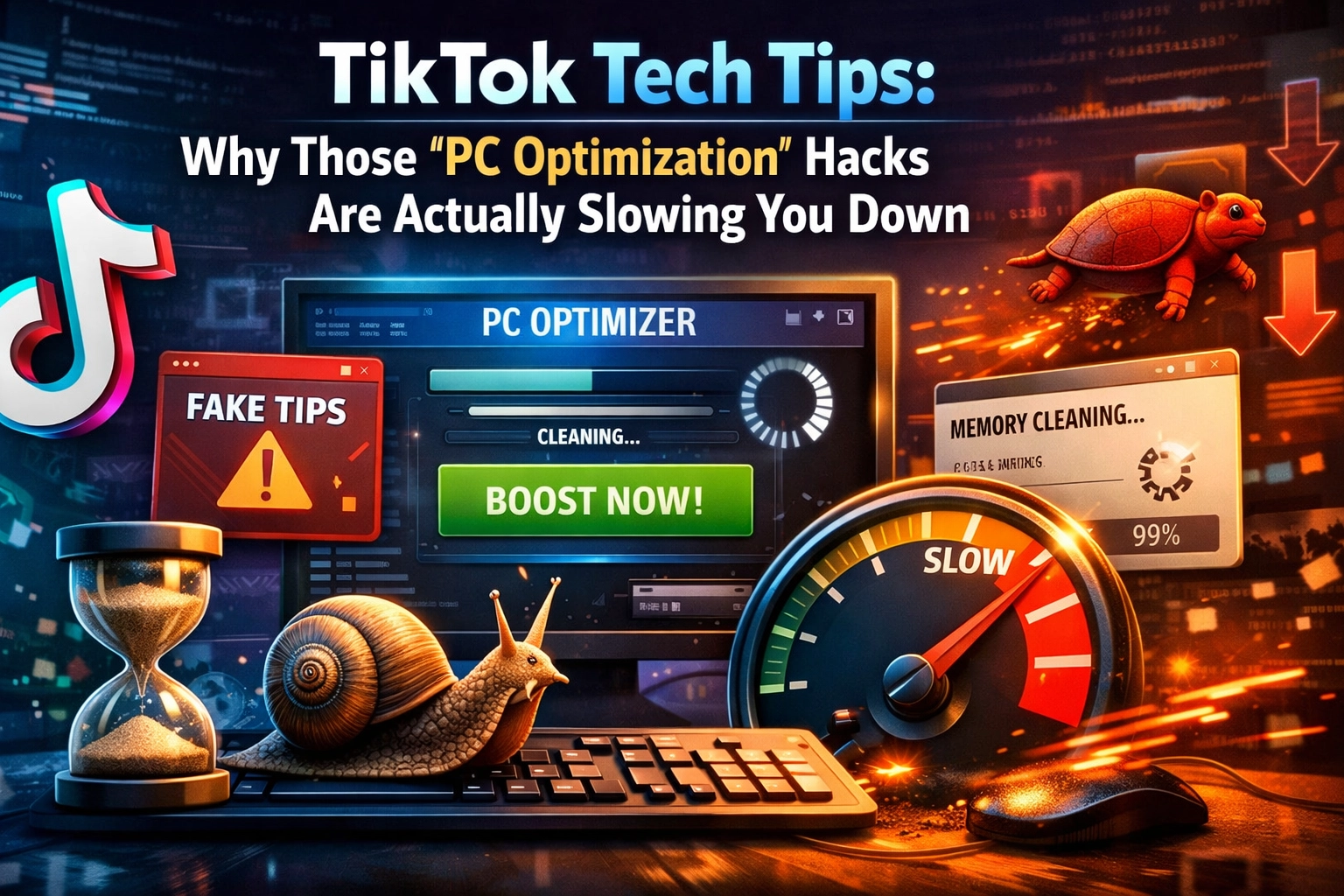
If you’ve spent more than five minutes on TikTok or YouTube Shorts lately, you’ve probably seen them. They start with a high-energy voiceover saying something like, “Want to 10x your PC speed? This hidden Windows setting is a total game-changer!” They show a few quick clicks, a mysterious command typed into a box, and, presto!, your computer is supposedly now a NASA-grade supercomputer.
As the team here at Second Wind Sales and Services, Cody and the crew see the aftermath of these “hacks” all the time. While some tips, like disabling startup apps, are actually helpful, a huge chunk of “Tech TikTok” is filled with advice that’s either twenty years out of date or, worse, actively dangerous for your hardware.
Let’s be real: your computer isn’t a mystery box that requires a secret code to run correctly. Most of the time, the “optimization” you’re looking for is already built into Windows 11. Today, we’re debunking the biggest myths floating around your feed and explaining why some of those “hacks” are the digital equivalent of trying to make your truck go faster by throwing away the spare tire and the side mirrors.
The “Vintage” Advice Trap: Your PC Isn’t Running Windows Vista Anymore
A lot of the “optimization” tips making the rounds today were actually great advice… back in 2006. When Windows Vista was the primary OS and we were all rocking 2GB of RAM, every single kilobyte mattered.
Modern operating systems like Windows 10 and Windows 11 are incredibly smart. They handle memory management, background processes, and power delivery in ways that would have seemed like black magic during the XP era. When you follow a tip designed for a 20-year-old operating system, you’re often fighting against the built-in logic of your modern PC.
For example, many “performance gurus” tell you to go into the registry to “unleash” your CPU cores. Newsflash: Windows already knows how many cores your CPU has. It’s using them. Messing with these deep-level settings usually just leads to instability or the dreaded Blue Screen of Death. It’s like trying to tell a professional chef how to boil water, they’ve got it covered, and you’re probably just going to get in the way.

The “PC Cleaner” and “Optimization” Software Scam
If a video tells you to download a specific “PC Booster” or “Registry Cleaner,” proceed with extreme caution. At Second Wind, we often find that these programs are actually bloatware, software that sits in your background, eats up your resources, and does exactly the opposite of what it promises.
Most “Cleaners” do two things:
- Delete Temporary Files: You can do this yourself for free using the “Disk Cleanup” tool or “Storage Sense” built right into Windows.
- “Clean” the Registry: This is the big one. The Windows Registry is a massive database of settings. Deleting “orphaned” keys rarely speeds up your computer, but deleting the wrong key can make your favorite games stop launching or break your Windows Update entirely.
Modern Windows doesn’t need a third-party janitor. It has its own broom. If your PC feels sluggish, the answer is rarely “more software.” Usually, the answer is professional laptop repair or a simple hardware upgrade like an SSD.
The RAM Myth: Why “Free” RAM is Wasted RAM
This is a classic TikTok tip: “Close all your background apps to free up RAM!” On the surface, it sounds logical. More free RAM must mean a faster computer, right?
Not exactly. Modern operating systems use a concept called Prefetching. Windows likes to keep frequently used data in your RAM because RAM is lightning-fast compared to your hard drive or even an SSD. If your RAM is sitting empty, it’s not doing anything to help you.
When you use “RAM Boosters” or aggressively kill background tasks, you’re forcing Windows to reload that data from your storage the next time you open an app. This actually uses more CPU power and more battery life. It’s like turning your car engine off at every single red light in Lethbridge during a -30°C cold snap. Sure, you’re “saving gas” for thirty seconds, but the wear and tear (and the fuel used to restart the engine) makes it a losing game.

Visual: A split screen showing a “Clean” empty RAM usage bar vs a “Full” RAM bar, with a “Don’t Panic!” label over the full one.
The “Windows + R” Danger Zone: Don’t Type It if You Don’t Know It
This is the most important part of this post, so listen up. A very popular TikTok trend involves telling you to open the Run box (Windows key + R) and type in a string of characters or a command.
Stop. Seriously. Do not run random commands unless you understand exactly what they do and where they’re pointing.
The Run box is basically a direct hallway into the “under the hood” parts of Windows. In the shop, we’ve seen “tips” that tell people to type commands that:
- Disable Windows Defender (leaving you wide open to malware).
- Change boot settings in ways that can stop a PC from starting properly.
- Launch PowerShell scripts that download junk, create backdoors, or hand remote access to a fake “technician.”
Treat Windows + R like a loaded tool: useful in the right hands, expensive in the wrong ones. If a video says, “Just type this—don’t worry what it means,” that’s not a pro-tip. That’s a red flag with a siren on it.
If you’ve already tried one of these and your PC is acting weird, check out our services page to see how we can help get you back on track.
Battery Life Lies: Your Phone and Laptop Are Smarter Than You Think
We also see a lot of “battery optimization” myths. “Don’t charge it past 80%!” or “Let it die completely before charging!”
These tips apply to Nickel-Cadmium (NiCd) batteries, which haven’t been standard in consumer tech for over a decade. Modern devices use Lithium-Ion (Li-ion) batteries. They don’t have a “memory effect.” In fact, letting a modern smartphone or laptop battery drop to 0% frequently can actually damage it.
Modern devices have sophisticated charging controllers. Charging your phone overnight isn’t “overcharging” it because the phone literally stops the flow of electricity once it hits 100%. If you’re worried about battery health, the best thing you can do is keep your device out of extreme heat (like a hot car in July). Heat is the true battery killer, not your charging cable.
What Actually Works for Optimization?
If you want your PC to run faster, you don’t need “hacks.” You need good maintenance. Here is the Second Wind Sales and Services approved list of things that actually make a difference:
- Manage Startup Apps: Right-click your Taskbar, go to Task Manager, and click the “Startup” tab. Disable things you don’t need opening the second you turn on your PC. (Looking at you, Spotify and Steam).
- Keep it Clean (Physically): Dust is the enemy of performance. If your fans are clogged, your CPU will “thermal throttle”: it slows itself down so it doesn’t melt. A quick blast of compressed air can do more for your FPS than any software hack.
- Update Your Drivers: Especially your GPU drivers. Go directly to the source (NVIDIA, AMD, or Intel).
- Check Your Storage: If your C: drive is 99% full, Windows will struggle to find space for its “swap file,” which will slow everything to a crawl. Keep at least 10-15% of your drive free.
- The SSD Upgrade: If you are still running Windows on a mechanical Hard Disk Drive (HDD), no amount of TikTok tips will save you. Upgrading to a Solid State Drive is the single most impactful thing you can do for an older computer.
Trust the Pros, Not the Algorithms
TikTok is great for recipes, dance trends, and cat videos. It is a terrible place for deep technical advice. The algorithms prioritize high-energy, “shocking” content over boring, accurate information. Telling someone to “Check their thermal paste” isn’t as exciting as telling them to “Type this secret code to unlock 500% more RAM,” but only one of those things actually works.
At Second Wind Sales and Services, we’re all about giving your tech a second chance at life. We love a good “Side Quest,” but we’d rather help you build a reliable machine than fix a bricked one caused by a 15-second video.
If your computer is feeling slow, or if you accidentally followed a “hack” that made things worse, don’t panic. Bring it by the shop in Lethbridge, and we’ll get it sorted. We’re experts in Lethbridge electronics repair, and we promise to give you advice that’s grounded in 2026, not 2006.
Stay safe out there in the digital wild west!
Pro-tip: If you ever feel the urge to “optimize” your registry, just close the laptop and go for a walk around Henderson Lake instead. Your PC: and your sanity: will thank you.
Need a hand with a slow computer? Contact us here or check out our full shop for refurbished gear that’s already optimized the right way.
Leave a Reply