
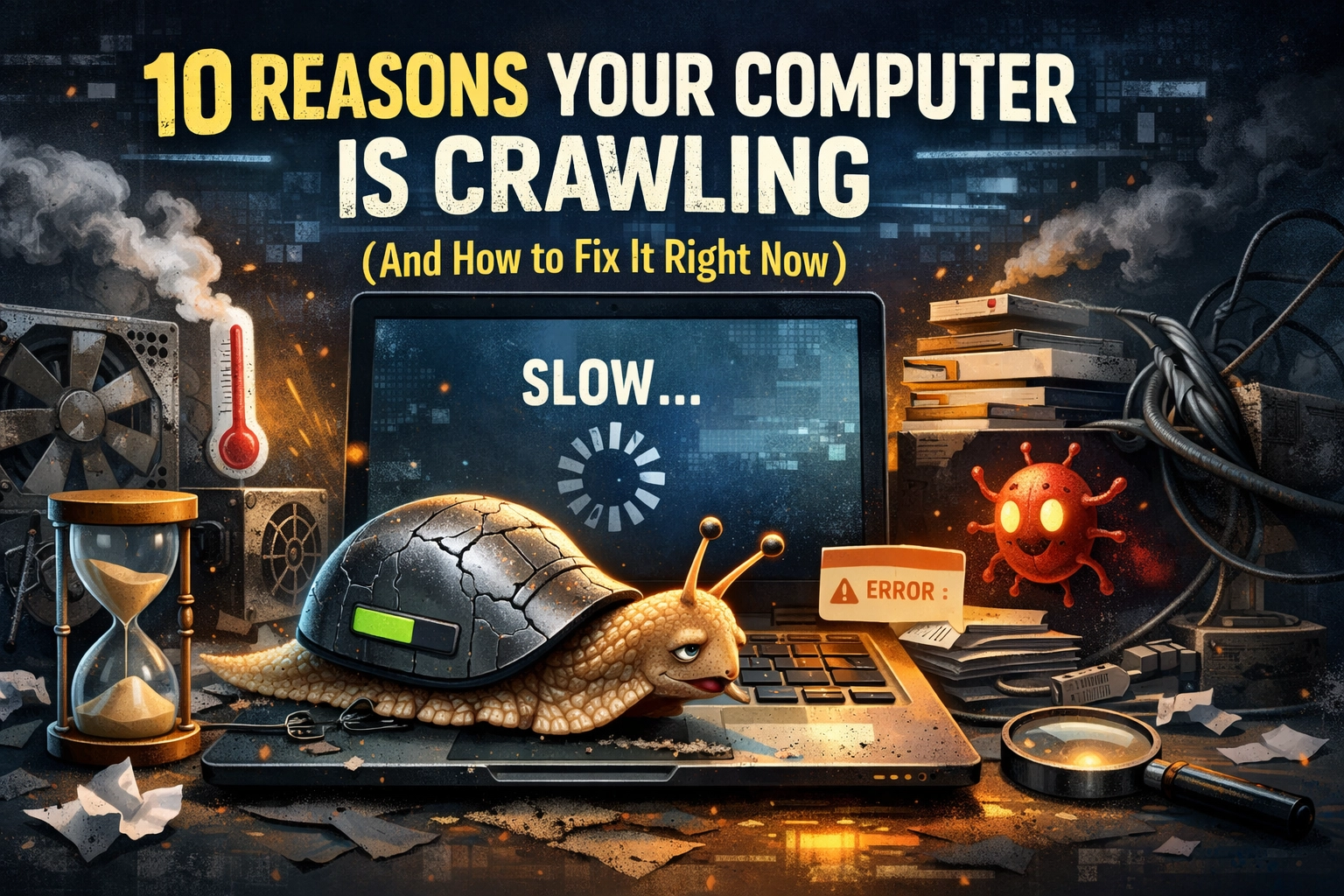
We’ve all been there. You sit down to get some work done, maybe check your emails, or just watch a video, and your computer decides it’s going to take a nap while you’re staring at it. It starts spinning that little wheel of death, and suddenly, opening a simple web browser feels like trying to run a marathon through a foot of fresh Alberta snow in a pair of flip-flops.
It’s frustrating, I get it. At SECOND WIND SALES AND SERVICES, I see this every single day. People come in thinking they need to drop a couple of thousand dollars on a brand-new machine because their current one is “too old.” But most of the time, your tech isn’t dying; it’s just bogged down. It just needs a second wind.
Let’s walk through the ten most common reasons your computer is acting like a turtle on a treadmill and, more importantly, how we can fix it today.
1. The Morning Traffic Jam: Too Many Startup Programs
Imagine if every time you stepped out of your front door, ten people immediately jumped on your back and asked you to carry them to work. That’s what happens when you have too many startup programs.
Many apps, looking at you, Spotify, Steam, and Zoom, think they are the most important thing in your life, so they set themselves to launch the second you turn your computer on.
The Easy Way: Open your Task Manager (Ctrl + Shift + Esc) on Windows or “Users & Groups” in Mac System Preferences. Look at the “Startup” tab and disable anything you don’t need immediately.
The Hard Way: Manually going into every single app’s individual settings to find the “Launch on Startup” toggle. Trust me, use the Task Manager.
2. Even Your Tech Needs a Nap: Gaps Between Reboots
I’m a big fan of the “Sleep” mode too, but your computer’s memory cache is like a kitchen counter. If you keep cooking meals (opening programs) without ever wiping it down (restarting), eventually you run out of room to chop the onions.
Restarting clears out the temporary “gunk” that builds up in your RAM. If it’s been three weeks since your last actual reboot, go ahead and do it now. I’ll wait.
3. The Invisible Roommates: Background Processes
Just because you don’t see a window open doesn’t mean your computer isn’t working. Dozens of processes run in the background, updaters, sync tools, and “telemetry” (which is just a fancy word for big companies spying on how you use your mouse).
Keep an eye on your CPU and Memory usage in the Task Manager. If something is eating up 40% of your power and you don’t recognize it, it might be time to send it packing.

4. The Overstuffed Attic: Hard Drive Nearly Full
Your operating system (Windows or macOS) needs physical “breathing room” on your hard drive to move files around and store temporary data. Once you hit about 90% capacity, things start to slow down drastically. It’s like trying to find a specific Christmas ornament in an attic packed to the ceiling with old newspapers.
Pro-Tip: If your drive is red in the “This PC” view, delete your “Downloads” folder contents. We all have 500 copies of the same PDF in there.
Check out our shop if you’re looking for external storage solutions to offload those heavy files.
5. The RAM Reality Check (and the Global Shortage)
This is a big one. RAM (Random Access Memory) is your computer’s short-term memory. If you don’t have enough, your computer has to use your much slower hard drive to store active data.
In 2026, 8GB of RAM is the absolute bare minimum for just browsing the web. If you’re doing any kind of photo editing or even just keeping 20 Chrome tabs open, you’re going to feel the pinch.
Now, let’s talk shop for a second. We’re currently seeing some ongoing RAM shortages in the global supply chain. This makes getting new parts a bit trickier, but it highlights exactly why we do what we do here at SECOND WIND SALES AND SERVICES.
Upgrading your memory instead of tossing the whole laptop is a massive win for the environment. It’s the ultimate “reduce, reuse, recycle” move. Adding an extra stick of RAM is like giving your computer a bigger desk to work on. It’s a sustainable, affordable way to give an older machine a total “second wind” without contributing to the massive pile of e-waste in our landfills. Don’t trade it, save it.
6. Keeping Your Cool: Processor Overheating
Computers are like people, they don’t work well when they’re feverish. If your laptop fans sound like a jet engine taking off from the Edmonton International Airport, your processor is likely getting too hot. To prevent itself from melting, the CPU will “throttle” or slow itself down.
- The Fix: Use a can of compressed air to blow the dust out of your vents.
- The Expert Move: If it’s an older machine, the thermal paste (the stuff that moves heat away from the chip) might have dried up. That’s something I can fix for you in a jiffy.
7. The Junk Drawer Effect: Fragmented Hard Drives
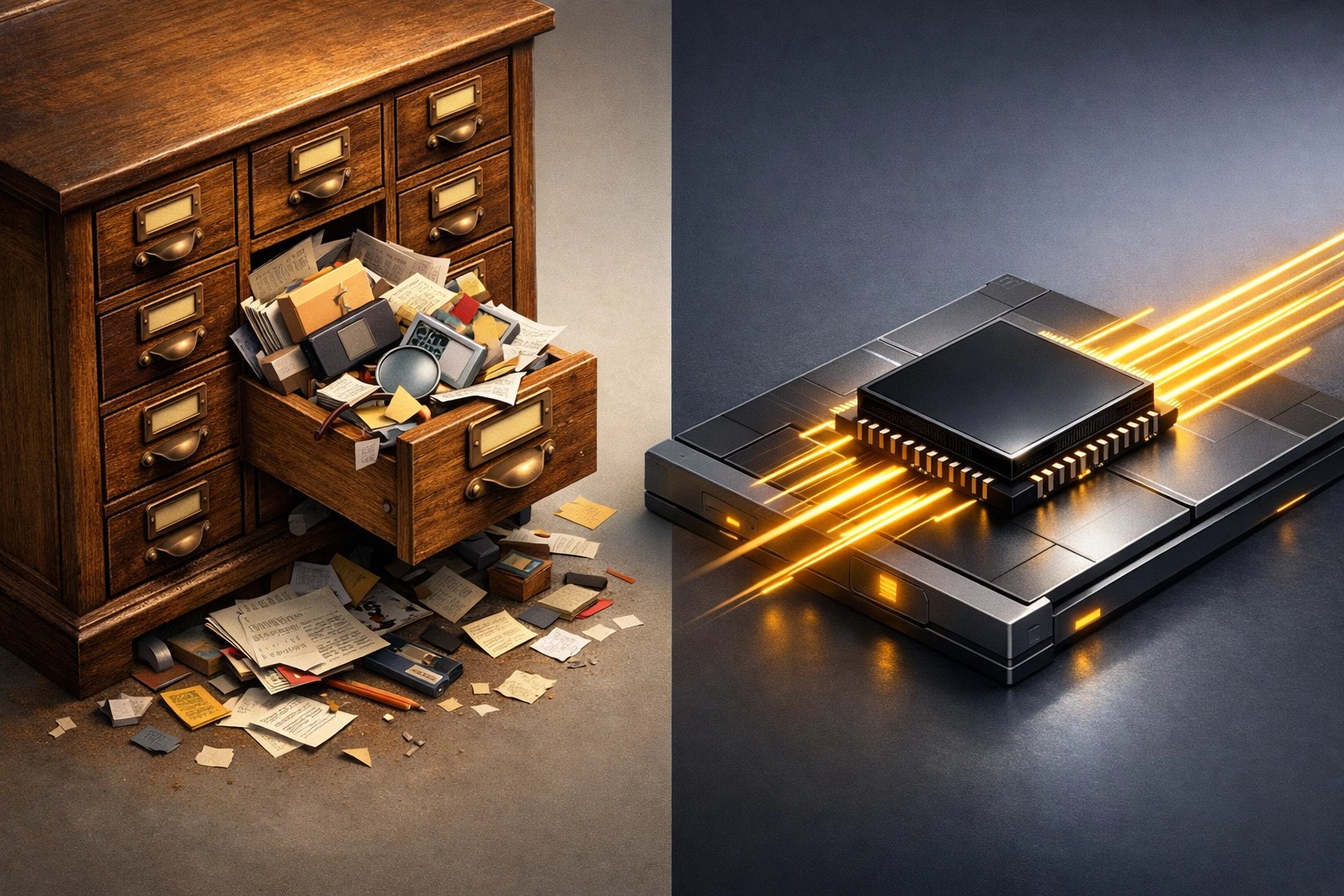
If you are still using an older mechanical Hard Disk Drive (HDD), the ones that actually spin, your files can get “fragmented.” This means pieces of a single photo might be scattered across different parts of the physical disk. Your computer has to wait for the disk to spin around to find every piece.
The Solution: Upgrade to an SSD (Solid State Drive). It’s like moving from a filing cabinet to a telepathic assistant. If you aren’t ready for that, run the “Defragment and Optimize Drives” tool in Windows.
8. The Uninvited Guests: Malware and Viruses
This is the scary one. Malicious software isn’t always trying to steal your bank info; sometimes it’s just using your computer’s power to mine cryptocurrency or send spam emails. This “parasitic” load will make your PC feel like it’s wading through molasses.
If your computer is acting weird, pop-ups, strange search engines appearing, or just unexplainable lag, run a scan. And hey, before you do anything drastic, make sure you know how to back up your data. You don’t want to lose your photos while trying to kill a virus.
9. Teaching an Old Dog New Tricks: Outdated Software
Running a brand-new, resource-heavy operating system on 10-year-old hardware is a recipe for a headache. Conversely, running old, unoptimized drivers on new hardware is just as bad.
Keeping your drivers (especially your graphics and chipset drivers) up to date ensures that the hardware and software are actually speaking the same language. It’s like making sure your car’s computer system is synced up with the engine.
10. The Power Paradox: “Battery Saver” Mode
If you’re on a laptop, check your power icon in the bottom right. If you’re in “Battery Saver” mode, your computer is intentionally slowing down to save juice. It’s like putting a speed limiter on a Ferrari.
Switch it to “High Performance” or “Balanced” when you’re plugged into the wall. You’ll see an instant jump in snappiness.

Why “Second Wind”?
At the end of the day, a slow computer is a drain on your productivity and your sanity. But you don’t always need to go to a big-box store and buy the latest shiny thing. Most of the time, your current computer just needs a little TLC, a memory boost, or a clean-up.
Whether it’s a tricky phone repair or a laptop that needs a RAM upgrade to overcome the current shortages, we’re here to help. We believe in keeping tech out of the trash and in your hands.
If your computer is still crawling after trying these fixes, bring it by SECOND WIND SALES AND SERVICES. I’m not a miracle worker, but I’m pretty close when it comes to making old tech feel new again.
Swing by the shop or check out our services online. Let’s get that computer back up to speed!
Leave a Reply